Fix a wheel that is not showing on Shopify
The problem
You saved your wheel, but it does not open on your Shopify storefront.
Possible causes
- The Lucky Wheel app embed is off in your theme.
- The wheel is not Active, or it was never saved.
- You are looking at the store inside the theme editor.
- Your store has a password page.
- You already saw or spun the wheel in this browser.
- The wheel is set not to show on this device.
- You are on the cart page.
- Your plan's monthly wheel views ran out.
- You renamed the app proxy in Shopify.
- The change has not reached your store yet.
Fix for each cause
1. The app embed is off
- Open the app's Home page and look at Wheel on your storefront.
- If it shows Off, click Turn on in theme editor, check that Lucky Wheel is switched on, and click Save in the theme editor.
- Back in the app, click Check again.
If it shows Cannot check here, open the theme editor and check Lucky Wheel under App embeds yourself.

2. The wheel is not active
- Click Wheel in the app menu.
- Under Status, set Wheel status to Active and click Save.
- The badge should show Live on your store. Draft and Paused wheels do not show.
3. You are in the theme editor
The wheel does not open inside the theme editor. Open your store itself in a new tab.
4. Your store has a password page
While your store is password protected, visitors who have not entered the password see only the password page, so they do not see the wheel. Enter the store password in your browser to test it. Shoppers see the wheel once you remove the password.
5. You already saw or spun the wheel
- Each shopper can spin once. In a browser that remembers the spin, the wheel never opens again and the launcher tab is hidden. A second spin with the same email or phone number is refused, even from a new device or browser, with "You have already spun this wheel."
- How often sets how often the wheel opens by itself for a shopper who has not spun yet. With anything other than Every visit, it opens only as often as you chose.
- If your store shows a cookie banner and the shopper does not allow the wheel to store preferences, the wheel cannot remember anything in that browser. It then opens by itself once on each page view, whatever you chose for How often. The launcher tab still shows. A shopper cannot spin twice with the same email or phone number, because our server checks them.
To test, open your store in a new private window.
6. The device is turned off
Under When it shows → Show on, check Desktop and Mobile. A screen 768 pixels wide or less counts as mobile.
With When the shopper is about to leave, phones have no pointer, so there the wheel opens after the delay.
7. You are on the cart page
The wheel never opens by itself on the cart page, so it does not get in the way of checkout. Only the launcher tab shows there.
8. The monthly views ran out
When your plan's wheel views run out and the grace time ends, the wheel stops opening for new visitors until your views reset. See Plans, billing and wheel views on Shopify.
9. You renamed the app proxy in Shopify
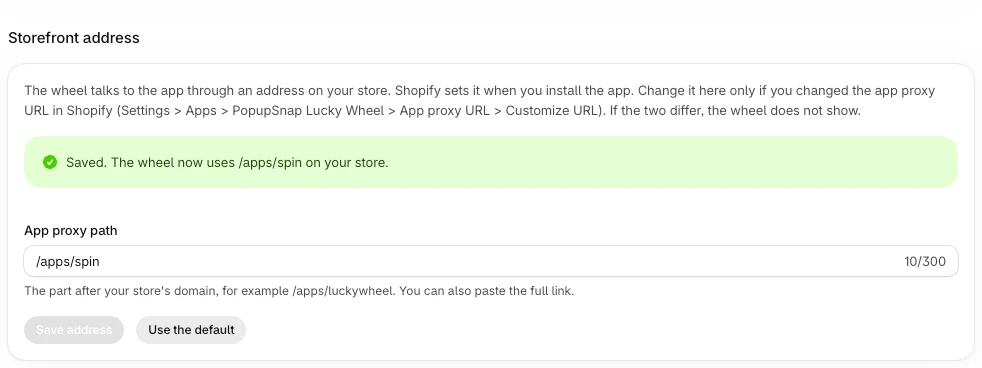
The wheel talks to the app through an address on your store. Shopify sets it to /apps/luckywheel when you install the app. If you changed it in Shopify (Settings → Apps → PopupSnap Lucky Wheel → App proxy URL), Shopify does not tell the app, so the wheel keeps calling the old address and does not open.
- Open the app's Home page and find Storefront address.
- In App proxy path, type the new path, for example
/apps/spin, or paste the full link. The path starts withapps,a,communityortools, then a name of up to 30 letters, numbers, hyphens or underscores. - Click Save address. The page says the wheel now uses that address on your store.
- To go back to the original address, click Use the default.
If the page says it cannot read the address from Shopify, try again later.
10. The change has not reached your store yet
A saved change can take up to a minute to show. Reload the page after a minute.
Check that it works
- Home shows On under Wheel on your storefront.
- Wheel shows Live on your store.
- In a new private window, the wheel opens after the delay you set.
When to contact support
Email [email protected] when all of the above is fine and the wheel still does not open. Send your store address (your-store.myshopify.com) and the page where you tested.
Related articles
Did this article answer your question?