See and export your leads on Shopify
A lead is a shopper who spun your wheel and left an email address or a phone number. The Leads page lists them, lets you search for one shopper and exports the list as a CSV file.
When to use this article
- You want to see who entered your wheel and what they won.
- You want to send marketing emails or texts to the shoppers who agreed to receive them.
- You want to find one shopper's entry.
Before you start
- Your wheel is live and shoppers have spun it. Until then the page shows No leads yet.
- Saving shoppers as customers in your Shopify store is off for now. It needs Shopify to approve customer-data access for the app, and that is not approved yet. We cannot promise a date. Until it is on, shoppers' emails and phone numbers stay in Lucky Wheel, and the Leads page and the CSV export are where you find them. Nothing is added to your Shopify customers.
Open the Leads page
- In your Shopify admin, go to Apps and click PopupSnap Lucky Wheel.
- In the app menu, click Leads. The menu has Home, Wheel, Leads and Plan.
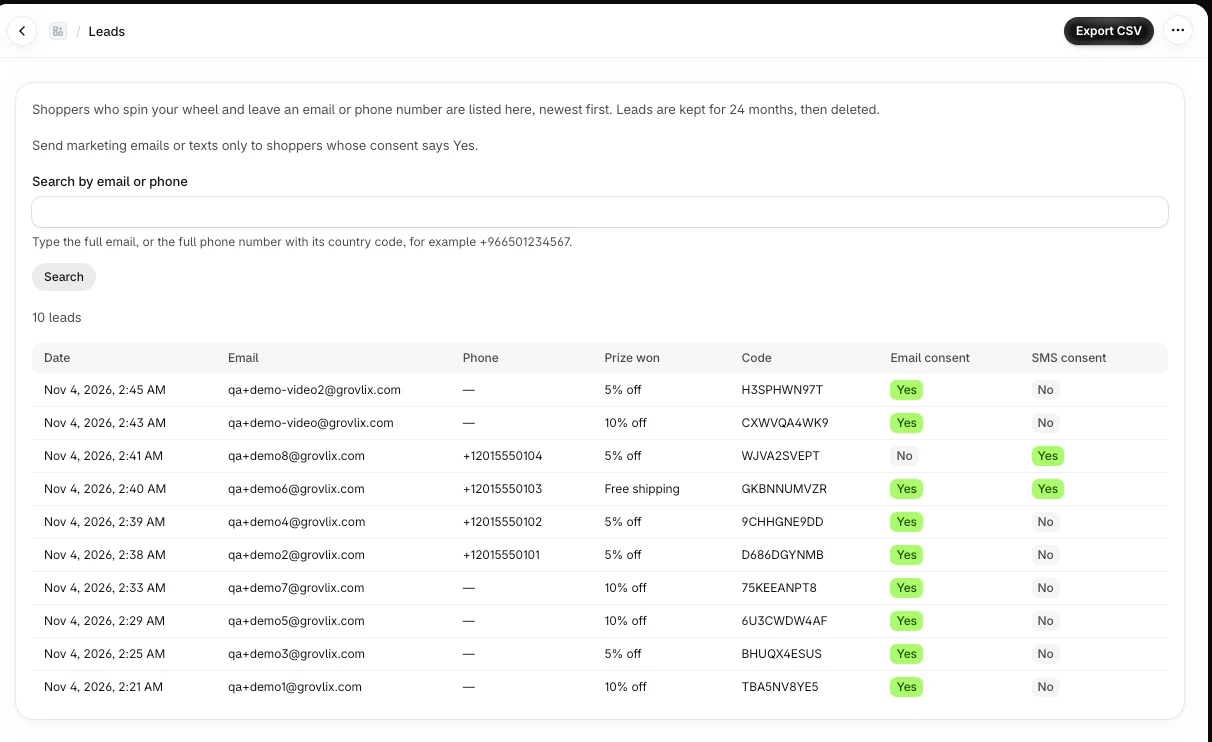
The page shows the number of leads, then a table with one row per lead, newest first. It shows 25 leads per page. When you have more than 25 leads, use Previous and Next to move between pages.
| Column | What it shows |
|---|---|
| Date | When the shopper spun. |
| The email the shopper typed, if you ask for one. | |
| Phone | The phone number the shopper typed, if you ask for one. |
| Prize won | The prize, or No prize when the shopper did not win. |
| Code | The discount code the shopper won. |
| Email consent | Yes or No: did the shopper agree to marketing emails. |
| SMS consent | Yes or No: did the shopper agree to marketing texts. |
Send marketing emails or texts only to shoppers whose consent says Yes.
Search for one shopper
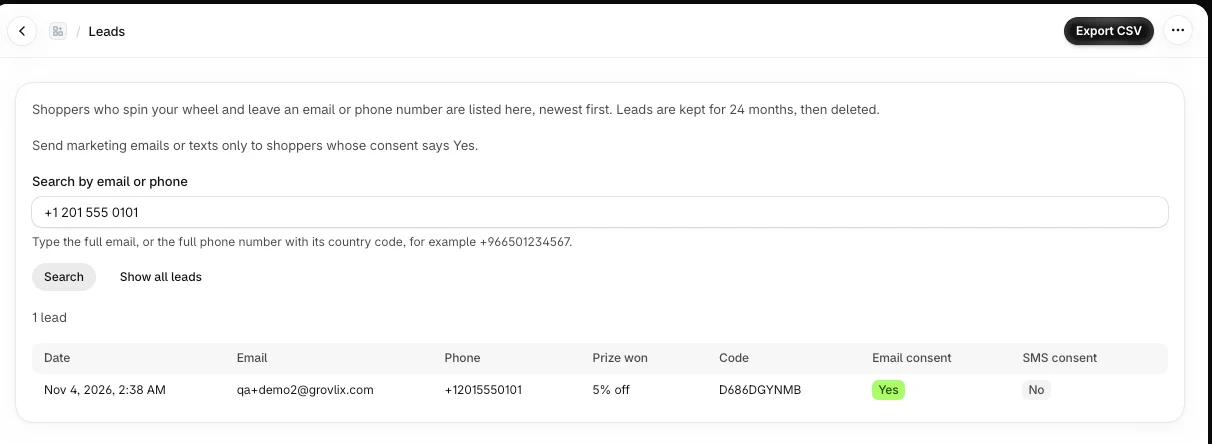
Search needs the whole email address, or the whole phone number with its country code. Part of an email does not match.
- In Search by email or phone, type the full email, for example
[email protected], or the full phone number with its country code, for example+966501234567. - Click Search.
- To go back to the full list, click Show all leads.
If nothing matches, the page says "No lead has this email or phone number." If what you typed is not a full email or a phone number with a country code, the page asks you to correct it.
Export your leads as a CSV file
- On the Leads page, click Export CSV.
- Your browser downloads a file named
luckywheel-leads-followed by today's date, for exampleluckywheel-leads-2026-11-04.csv. - Open it in Excel, Numbers or Google Sheets.
About the file:
- It holds all your leads, not only the page you are looking at. It is not filtered by your search.
- It is UTF-8 with a byte order mark, so Excel shows Arabic text correctly.
- The columns are Date (UTC), Email, Phone, Prize, Discount code, Email marketing consent and SMS marketing consent. The header row is in Arabic when your browser is set to Arabic, and in English otherwise.
- Dates are in UTC, not in your store's time zone.
- Consent shows Yes or No. A shopper who did not win shows No prize.
- A cell that starts with
=,+,-or@gets an apostrophe in front, so a spreadsheet does not run it as a formula. Phone numbers such as+966501234567are left as they are.
We do not keep a copy of the file on our servers.
The export limit
You can export up to 10 times an hour. After that the page says "You have exported your leads many times in the last hour. Try again in N minutes", with the number of minutes to wait. Searching and browsing the list are not limited this way.
How long leads are kept
Leads are kept for 24 months from the date each one was captured, then deleted. A lead older than that no longer shows on the page or in the export. See Uninstall, your data and privacy requests on Shopify.
Who can see your leads
You, through the app in your Shopify admin. Every time you open the Leads page or export the list, we write a log entry: the date, your store, your Shopify user and how many leads it held. The log holds no shopper details. Our own staff are logged too, and no screen shows your shoppers' details to them.
Common errors
| Message or problem | What to do |
|---|---|
| No leads yet | No shopper has entered an email or phone number and spun the wheel yet. Check that the wheel is live: see Fix a wheel that is not showing on Shopify. |
| Leads could not load. Reload the page to try again. | Reload the page from Apps in your Shopify admin. |
| Leads cannot be shown right now. Try again later. | Try again in a few minutes. If it continues, email [email protected]. |
| The export did not work. Try again. | Click Export CSV again. |
| You have exported your leads many times in the last hour. | Wait for the number of minutes the message gives, then export again. |
| A shopper is not in your Shopify customers | This is expected for now: saving customers is off. The shopper is in the Leads page and the CSV. |
Related articles
Did this article answer your question?